Guide
Why Is My Internet Lagging Even Though My Speed Test Is Fast?
A fast result is reassuring, right up until the game stutters or the call freezes anyway. The explanation is almost always that speed and responsiveness are not the same thing — and the headline download and upload results mainly describe the first.
The short answer
A speed test measures performance to one particular test endpoint at one moment. High download and upload figures tell you the connection has plenty of capacity — but they do not guarantee low latency, steady timing or a clean route to whatever you are actually using.
A connection can still lag because of ping, jitter, packet loss, Wi-Fi interference, congestion, background traffic, routing, or a problem at the far end. Gaming, video calls and remote applications lean heavily on responsiveness and stability rather than raw speed, which is exactly why they can feel poor while the number looks great. And one fast test never proves that every destination or service will perform the same way.
Speed is not the same as responsiveness
A result is really several different measurements, and only one of them is the headline speed. They answer different questions:
Throughput
Download / upload, in Mbps
How much data can move at once. This is what a speed test headlines, and what most plans advertise. A high figure means capacity — not necessarily a responsive connection.
Latency
Ping, in milliseconds
How long data takes to make the round trip. This is what governs how instant an action feels, and it is largely independent of how many megabits you have.
Jitter
Milliseconds
How much latency varies from moment to moment. Steady latency feels smooth; latency that jumps around feels unstable even when the average looks fine.
Packet loss
Percentage
Data that fails to arrive. Depending on the application and protocol, this can cause retransmissions, stalls, missing updates, audio glitches or visual disruption. TestConn currently reports this as N/A rather than estimating it.
Stability
Consistency over time
Whether performance holds steady or comes and goes. A connection can post a fast peak yet drop repeatedly, which is what makes it feel unreliable in use.
Throughput is the one people watch, but latency, jitter, loss and stability are what make a connection feel instant or laggy. For how these appear on your own result, see understanding your results.
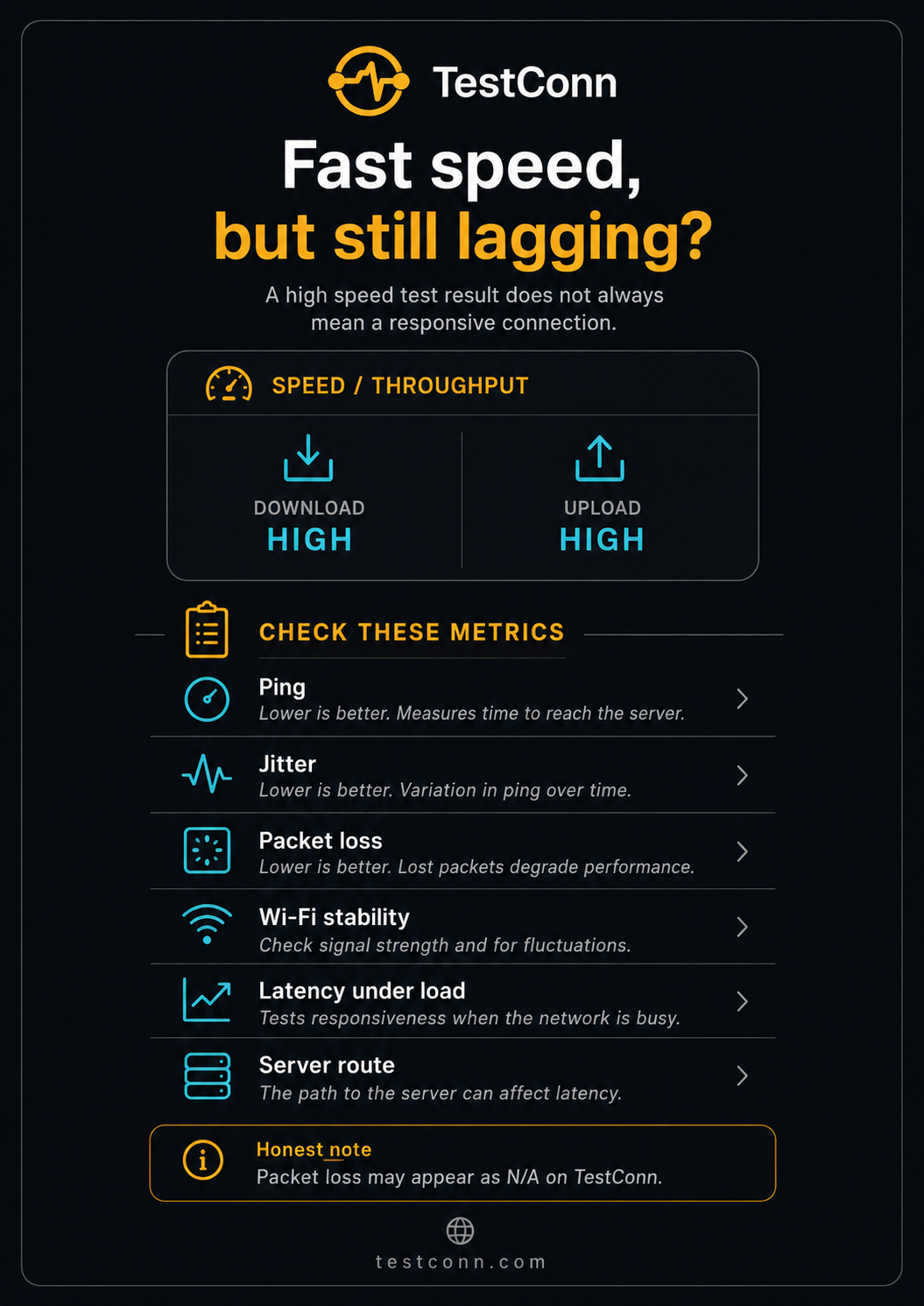
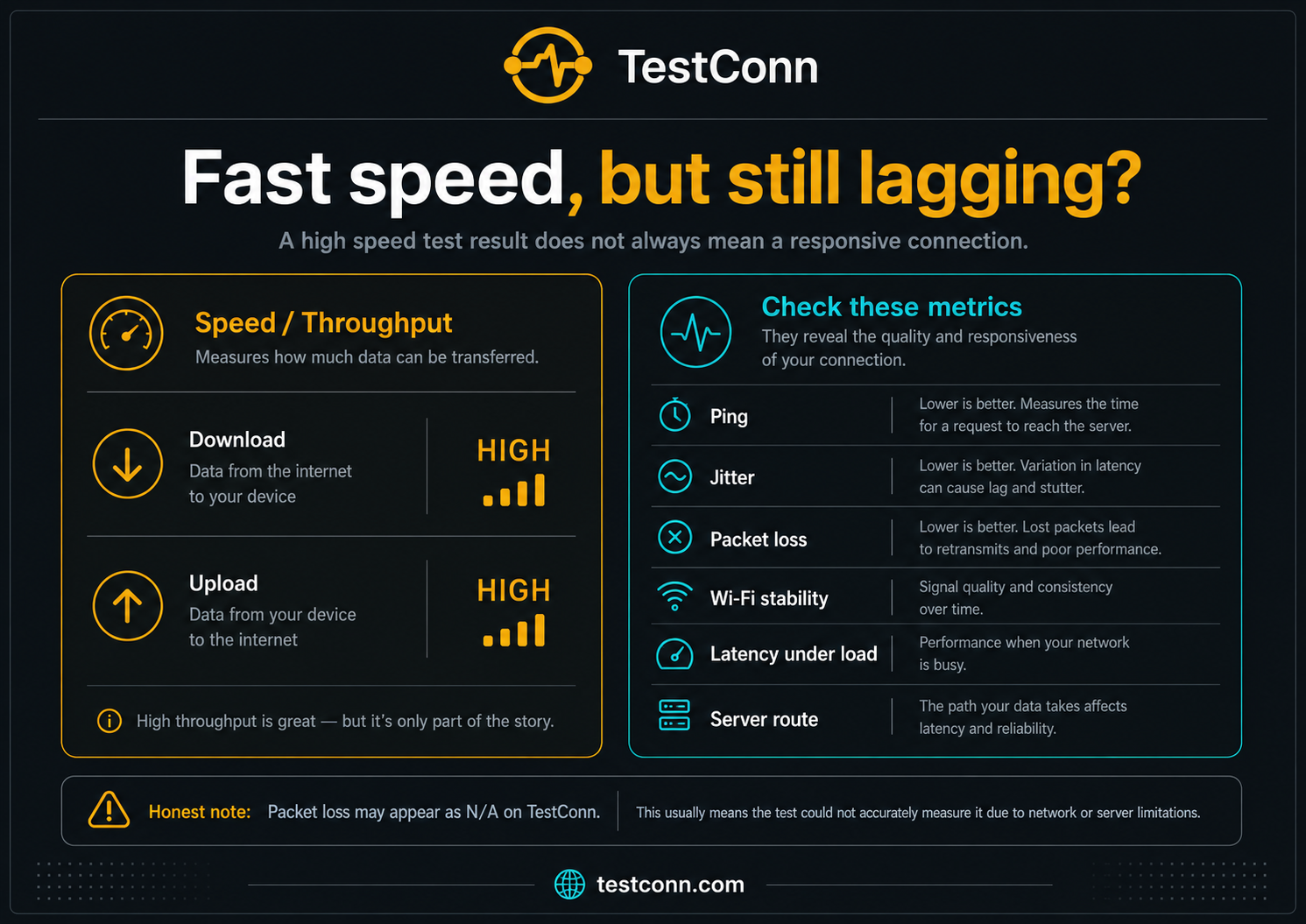
Why a fast speed test can still feel slow
Any of the following can produce lag while the headline figure stays high. Not all of them apply to every connection — the point is that a fast test rules none of them out:
- High ping
- Latency to whatever you are actually using can be high even when download is excellent — especially to a distant server.
- High jitter
- Latency that keeps changing breaks the timing games and calls rely on, producing stutter that a peak speed figure never shows.
- Packet loss
- Resent data causes visible stalls. A fast average throughput does not rule it out.
- Wi-Fi interference and weak signal
- A contested or distant wireless signal adds delay and instability, and it can fluctuate second to second while a test happens to catch a good moment.
- Provider or household congestion
- Contention on your line, your street or upstream lengthens the queue your data waits in, most noticeably at busy times.
- Background downloads, backups and sync
- Anything transferring in the background competes for capacity and can push latency up while it runs.
- VPN routing
- Sending traffic through an extra server adds distance and processing, which can raise latency even when throughput stays high.
- Device or browser limitations
- A busy device, too many open tabs or a heavy extension can make things feel slow in a way the connection is not responsible for.
- An overloaded router
- Older or heavily loaded routers can add delay of their own, particularly with many devices connected.
- Slow DNS lookups
- Before a page loads, its address must be resolved. A slow lookup delays every page start while the download itself stays fast.
- Service-side problems
- The game, site or platform you are using may itself be overloaded or far away, which nothing on your side will fix.
- Distance and routing to the destination
- The route between you and one particular service can be long or congested even when your route to a speed-test endpoint is short and clear.
- Latency under load (bufferbloat)
- On some connections, ping rises sharply whenever an upload or download is active — enough to cause lag during a backup or large transfer. More on this below.
If the trouble looks broader than lag alone, our guide to why your internet is slow works through the wider set of causes, and why results vary covers why no two tests match exactly.
The speed-test server is not the game or website server
This is the single most useful thing to understand about a fast test that does not match your experience. A speed test connects to a specific measurement endpoint. Its location and network route can differ substantially from those of the game, website or streaming service you are actually using.
The game server, streaming platform or website you actually use sits somewhere else entirely, reached by a different route. Congestion or a poor path can exist between you and one destination while your path to the test endpoint is short and clear. That is why one service can crawl while a speed test — and every other service — looks perfectly healthy. One slow destination does not mean the whole connection is slow. Our Methodology page sets out exactly what TestConn measures and against what.
Why gaming can lag with fast internet
Most online games use fairly modest bandwidth, so once you have enough, more megabits do little. What decides how a game feels is ping, jitter, packet loss and stability — and several things affect those independently of your speed:
- Game-server distance. A remote server carries unavoidable latency, whatever your plan.
- Wi-Fi interference. Wireless instability causes the spikes that show up as sudden lag.
- Household uploads. Another device sending data can lift your latency while you play.
- Streaming your gameplay. Broadcasting needs far more, and steadier, upload than simply playing does.
- Cloud gaming. With the game running remotely, it depends on low latency and sustained download for the video coming back.
For what counts as a good latency and how to bring it down, see what is a good ping for gaming.
Why streaming can buffer despite a fast test
Streaming needs sustained, steady throughput, which a single fast peak does not guarantee. Buffering while a test looks good usually comes down to consistency rather than capacity:
- Brief Wi-Fi drops that interrupt an otherwise fast connection.
- Throughput that is fast on average but not steady.
- Congestion at the service, or on its content-delivery servers.
- Another device consuming bandwidth mid-stream.
- VPN routing adding distance to the video’s path.
- A browser or app problem rather than the network.
- High-resolution streams needing sustained capacity that dips at the wrong moment.
Buffering is not always the provider’s doing — the service itself, your Wi-Fi or the device can each be responsible, so it is worth checking whether other content streams smoothly before concluding anything.
Why video calls freeze despite fast internet
Calls are two-way, and the two directions rely on different things. Your outgoing camera and microphone depend on upload; the other participants’ feeds arrive over download. A fast download result says nothing about whether your upload is sufficient or steady.
Stability matters in both directions, and high jitter is a common cause of choppy audio or video even when averages look fine. Because upload is often the smaller allocation, a background cloud backup can quietly consume it and freeze your outgoing image, and weak or unstable Wi-Fi can disrupt traffic in either direction. Our guide to download speed versus upload speed explains why the upload side is so often the culprit.
Why websites can load slowly despite high Mbps
Raw download speed controls only part of how a page loads. Plenty of the wait happens elsewhere:
- Slow name lookups delaying the very start of each page.
- A slow or distant website server.
- Large scripts and page assets the browser has to process.
- Browser extensions inspecting or rerouting requests.
- Cache problems, or a device that is short on resources.
- Routing between networks, or a VPN lengthening the path.
The telling distinction is whether one site is slow or every site is. One slow site with everything else fine points at that site, not your connection.
What is latency under load?
A connection can have a perfectly good ping when idle, then see that ping climb sharply the moment an upload or download becomes active. Because the rise happens precisely when the line is busy, it produces lag during backups, updates and large transfers — often just when you least want it.
This is often described as bufferbloat. In broad terms, it is linked to how traffic queues up when a connection is saturated: data waits in a buffer, and that wait is added latency. Router queue management and how thoroughly the link is being filled can both play a part. The details vary by connection and equipment, so this is a direction to investigate rather than a certain diagnosis — a simple check is to watch your ping while a large upload runs, then again with it paused.
Quick diagnosis by symptom
To jump to the likely area, find your symptom here:
Games lag but downloads are fast
- Check
- Ping and jitter, not Mbps
- Likely cause
- Latency, server distance or Wi-Fi instability.
- Try first
- Test over Ethernet and check whether ping is high or jitter varies.
Video calls freeze
- Check
- Upload and its steadiness
- Likely cause
- Weak or unstable upload, or another upload competing.
- Try first
- Pause cloud backups and move closer to the router.
Streaming buffers
- Check
- Throughput stability
- Likely cause
- Brief Wi-Fi drops, service congestion, or a busy connection.
- Try first
- Test near the router and try a different title or service.
Websites load slowly
- Check
- DNS and the site itself
- Likely cause
- Slow name lookups, a slow server, or the browser.
- Try first
- Try another site and another browser to isolate it.
Lag only over Wi-Fi
- Check
- Wireless coverage
- Likely cause
- Distance, interference, band choice or router placement.
- Try first
- Compare a wired connection; move closer and try the other band.
Lag only in the evening
- Check
- Time-of-day pattern
- Likely cause
- Household or upstream congestion at peak hours.
- Try first
- Compare a quiet-hours test with an evening one.
Lag when someone uploads files
- Check
- Latency under load
- Likely cause
- Latency under load, potentially including bufferbloat.
- Try first
- Test ping while a large upload runs, then with it paused.
Only one device is affected
- Check
- That device
- Likely cause
- Its wireless adapter, background sync, or settings.
- Try first
- Restart it and re-test beside the router.
Only one website or game is affected
- Check
- That destination
- Likely cause
- Its servers, its route, or the application itself.
- Try first
- Check whether everything else is fine, and try it elsewhere.
A VPN makes it slower
- Check
- Routing
- Likely cause
- The extra hop adds distance and processing.
- Try first
- Turn the VPN off briefly and compare.
Step-by-step test plan
Work through these in order, keeping a note as you go. The pattern across several tests tells you far more than any single result:
Pause downloads, uploads and cloud backups on every device.
Run TestConn and record download, upload, ping and jitter.
Repeat the test two or three times to see the pattern.
Test over Ethernet when possible for a clean baseline.
Compare Wi-Fi with Ethernet to gauge the wireless contribution.
Test close to the router to take coverage out of the picture.
Test another device to tell a device problem from a network one.
Disable an unnecessary VPN temporarily and compare.
Test at another time of day to reveal congestion.
Compare one slow service with another that works normally.
Restart the router and device, then re-test.
Record the patterns rather than trusting any single test.
Run a free internet speed test to record your download, upload, ping and jitter as a starting point.
How to reduce lag even when speed is fast
None of these is guaranteed to help, because the cause differs from one connection to the next. Work down the list and re-test after each change, so you know what actually made a difference:
Use Ethernet where practical
A cable removes wireless variables and steadies latency, which usually matters more here than any speed gain.
Move closer to the router
Reducing distance and walls strengthens a weak signal.
Reduce Wi-Fi interference
Keep the router in the open and away from other transmitters and dense obstructions.
Use an appropriate Wi-Fi band
Closer in, 5 GHz or 6 GHz usually helps; further away, 2.4 GHz may reach better. Neither is always best.
Pause background uploads
Backups and large uploads can consume upload capacity without being obvious and may increase latency while they run.
Schedule cloud backups
Move them to hours when you are not gaming or on calls.
Restart the router and device
Clears accumulated state that can quietly degrade performance.
Update your router firmware
Manufacturers fix performance and stability issues over time; check the admin page or app.
Test another device
Confirms whether the cause is one device or the whole network.
Close unnecessary tabs and extensions
These can add delay that has nothing to do with the connection; a private window is a quick test.
Turn off an unnecessary VPN to compare
Only to test — a marked improvement points to the VPN.
Choose a nearer game region when the service allows it
Server distance and network routing can significantly affect game latency, and choosing a nearer region is one factor you can sometimes control.
Avoid saturating your upload
A full upload can drag the whole experience, since many exchanges are two-way. Leaving headroom helps.
Compare different times
If lag is confined to peak hours, congestion is the likely explanation and the fix differs.
Contact your provider with recorded results
If controlled, wired tests show high latency or loss across times and devices, dated results make the case clearly.
For the wired-versus-wireless comparison specifically, see Wi-Fi versus Ethernet, and for how much any activity really needs, see what connection quality you need.
When the problem is probably not your internet connection
Some patterns point away from your line altogether, toward a device, an application or the destination:
- Only one website is slow
- If everything else is fine, that site or its route is the issue.
- One game server is overloaded
- A single laggy server, while other regions play fine, points at the server rather than you.
- One application misbehaves
- An app that struggles while others work is an app problem.
- The device is overloaded
- A device short on memory or already working hard feels slow regardless of the connection.
- The browser is the cause
- Extensions, many tabs or a browser due a restart can all add delay.
- The destination is far away
- A service hosted a long way off carries unavoidable latency no plan can remove.
- It started after an update
- A problem that began right after an app or system update usually belongs to that change.
- Everything else works normally
- When one thing lags and the rest is smooth, the connection is probably not the cause.
When one thing struggles and everything else is smooth, chasing your connection is usually the wrong place to spend effort. Your IP and network details can help describe the situation if you do need to report it.
Measure speed and responsiveness
The clearest way to tell a capacity problem from a responsiveness one is to look at all four numbers together — download, upload, ping and jitter — rather than the headline speed alone. A fast connection with high ping or jitter is exactly the combination that lags. The test runs entirely in your browser.
Frequently asked questions
Why am I lagging with good internet speed?
Because speed and responsiveness are different things. A fast download figure says nothing about latency, jitter, packet loss or stability — and those are what decide whether a connection feels instant. Wi-Fi problems, congestion, background transfers, routing or a slow destination can all cause lag while the speed test still looks good.
Can I have fast download speed and still have high ping?
Yes, easily. The two are largely unrelated. A gigabit connection still cannot beat the travel time to a distant server, and Wi-Fi issues or congestion can raise ping regardless of how many megabits you have.
Why does my speed test look good but gaming still lags?
Games depend on ping, jitter, packet loss and stability far more than on raw speed. A fast test to a nearby endpoint does not guarantee a low, steady latency to a specific game server that may be further away or on a busier route.
Can Wi-Fi cause lag even with fast internet?
Yes. Distance, walls, interference and a crowded channel add delay and, importantly, instability. A test can catch a good moment while your game or call catches a bad one. Comparing Wi-Fi against Ethernet is the quickest way to check.
Why does my internet lag only at night?
Evenings are when your household and neighbourhood use the connection most, so household activity or upstream congestion is one plausible explanation. Comparing a quiet-hours test with an evening one tells you which, and it does not automatically mean a fault.
Can cloud backups cause lag?
Yes. A backup uploading in the background can saturate your upload and push latency up while it runs, which is felt most in calls and games. Pausing or scheduling the backup is a useful comparison test and may reduce the problem.
Why does one game lag while everything else works?
That pattern points away from your connection and toward that game's servers, its region or the route to it. If every other service is smooth, the problem is unlikely to be your line.
What is more important for gaming: Mbps or ping?
Once you have enough bandwidth for the game — which is usually modest — ping, jitter and stability matter more for how it feels. Extra Mbps beyond that point rarely improves responsiveness.
Can a VPN cause lag?
It can add latency, because traffic takes an extra hop through another server. Occasionally it routes around a poor path and helps, but that is the exception. Turning it off briefly is a quick way to measure the effect.
How can I test whether Wi-Fi is causing the problem?
Run the same test over Wi-Fi and then over Ethernet, close to the router. If the wired connection is clearly steadier or faster, your wireless setup is the likely cause — and that is usually the most fixable kind.
Why do websites load slowly with fast download speed?
Page loading depends on more than raw download: slow name lookups, a slow website server, large scripts, browser extensions and your device all play a part. A single slow site with everything else fine usually is not a connection problem.
What is bufferbloat?
It is the name often given to latency rising sharply under load — your ping is fine when idle but climbs while an upload or download runs, causing lag during backups or large transfers. It is linked to how a router queues traffic when the connection is saturated.
How do I reduce internet lag?
Start with Ethernet or a stronger Wi-Fi signal, pause background uploads and backups, choose a nearer server where you can, and re-test after each change. None of these is guaranteed, so measure to see what actually helps on your connection.
Keep reading
- Internet speed test — measure download, upload, ping and jitter in your browser.
- What is a good ping for gaming? — the latency side in detail.
- Why is my internet slow? — a step-by-step diagnosis for a broader slowdown.
- Download speed vs upload speed — what each number governs and why upload is often the culprit.
- All guides — plain-language explanations of what your connection numbers mean.
- Methodology — how TestConn measures your connection, and what it cannot determine.