Guide
Why Is My Internet Slow?
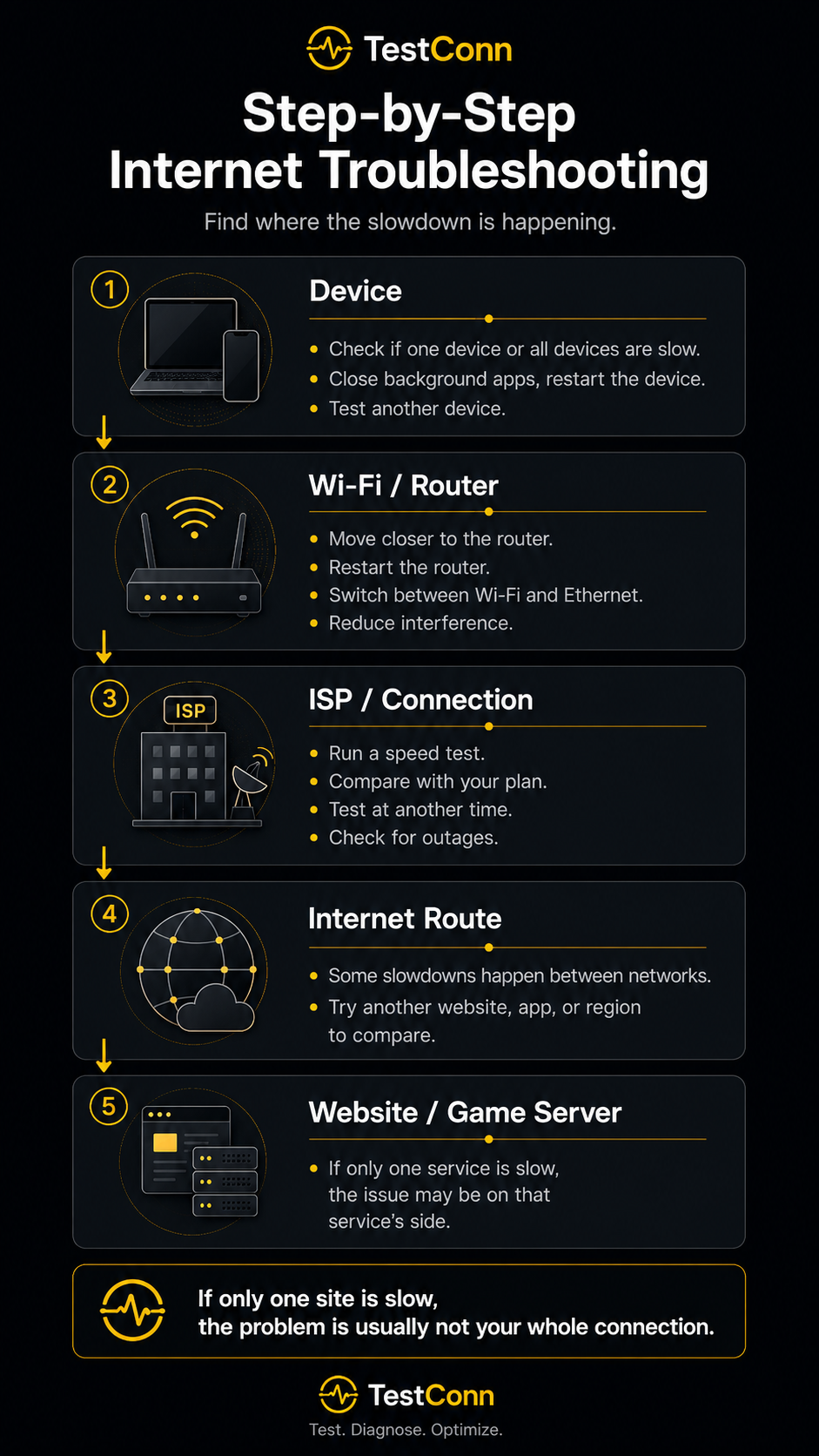
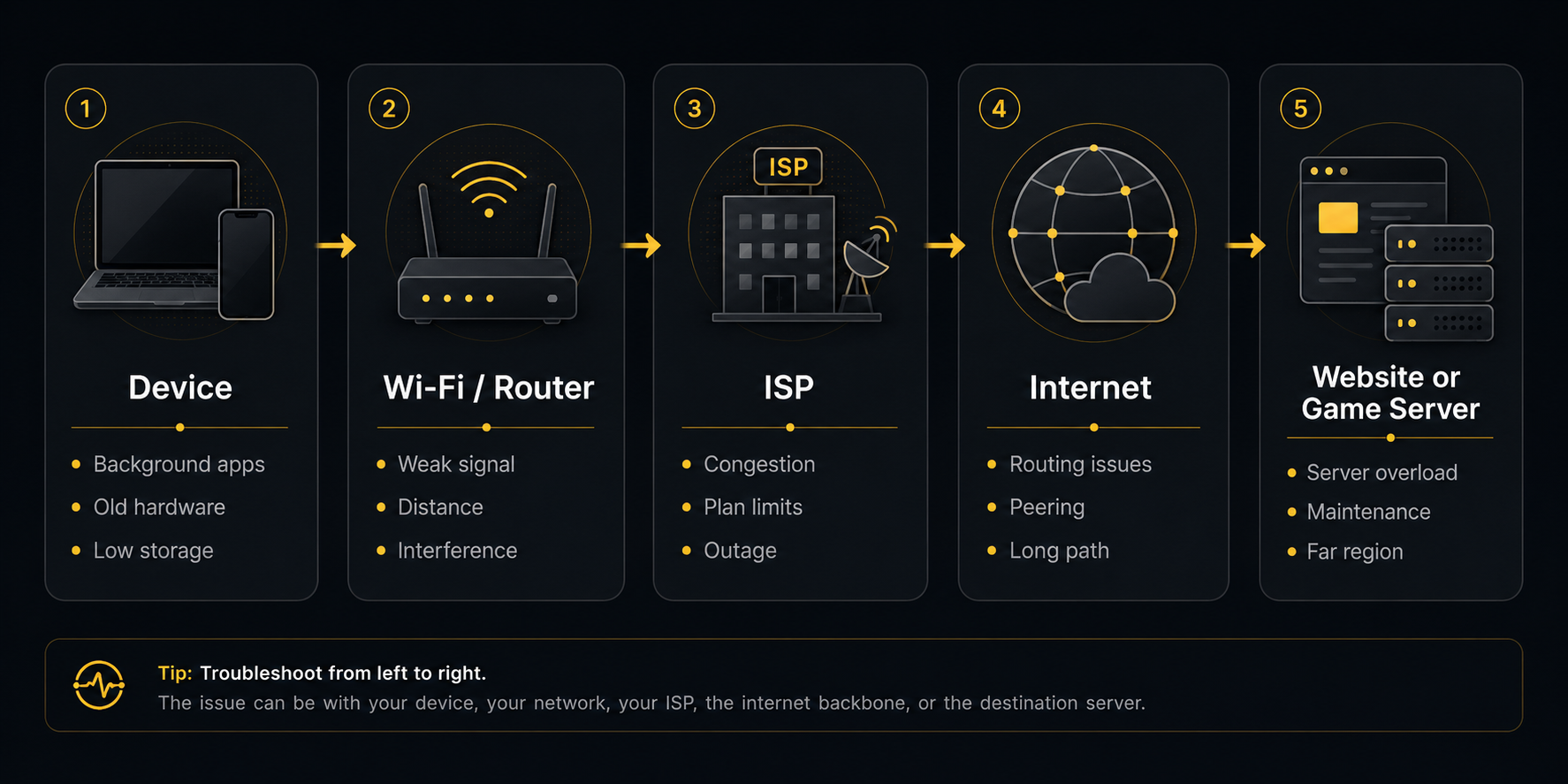
Slow internet has many possible causes, and the useful question is not which one is most common but which one is yours. This guide works through that systematically, from symptom to likely cause to something practical you can try.
The short answer
Most slowdowns trace back to one of a familiar set of causes: a weak Wi-Fi signal, distance from the router, other devices using the connection, background downloads, a router that needs attention, something on the device itself, a VPN or browser extension, congestion at your provider, or a problem with the specific service you are trying to use.
The good news is that you can narrow this down quickly without any special tools. A handful of comparisons — wired against wireless, one device against another, one time of day against another — can help you narrow down the most likely area to investigate.
Start here: six steps to narrow it down
Work through these in order. Each one eliminates a group of possible causes, so by the end you should know which area to focus on.
Run a speed test
Start with a baseline. Note download, upload, ping and jitter together — a problem that shows up in only one of them narrows the search considerably.
Compare Wi-Fi and Ethernet where you can
If a wired connection is noticeably better, the issue is in your wireless setup rather than the line coming into the building. If both are equally slow, look further upstream.
Test another device
Slowness on one device but not others points at that device. The same result everywhere points at the network, the router or the connection itself.
Test at another time of day
Comparing a quiet hour with a busy evening tells you whether you are looking at congestion or at something constant. This distinction changes which fixes are worth trying.
Check whether one site is slow or everything is
If one service crawls while others are fine, the problem is likely that service or the route to it — not your connection.
Restart your equipment and re-test
Restart the router and the affected device, then repeat the test. Do this after the comparisons above, so you can tell whether it actually changed anything.
First, define what "slow" means
“Slow” describes several different problems, and they do not share a cause. Identifying which one you actually have saves a great deal of time:
- Websites take a long time to open
- Often about latency, name lookups or the site itself rather than raw bandwidth — pages are made of many small requests.
- Video buffers or drops quality
- Points at sustained download capacity or stability. Brief interruptions matter as much as the average here.
- Games feel delayed
- A latency and stability question rather than a speed one. Download figures can look excellent while a game feels sluggish.
- Downloads are slow
- The closest symptom to raw download speed, though the server you are downloading from can be the limit rather than your line.
- Video calls or uploads are poor
- Usually about upload capacity and steadiness, which most home plans provide far less of than download.
- Only one device is affected
- Strong sign the cause sits on that device or in its wireless connection, not in the wider network.
- Only one website or app is affected
- Usually that service, its servers or the route to them. Your connection may be working exactly as it should.
There is no single speed that counts as fast enough for everyone. What you need depends on the activity, how many people share the connection, and the devices involved — the guide to reading your results covers what each number means in practice.
Run a controlled speed test
A test run while three other things are downloading tells you very little. To get a figure worth acting on:
- Pause downloads and streaming on every device in the house, not only the one you are testing from.
- Close applications you are not using, particularly anything that syncs or backs up.
- Test near the router to take wireless coverage out of the equation for the first reading.
- Use Ethernet if you can — this is the cleanest reading of the connection itself.
- Run the test more than once. A single result can be an outlier; three in a row show the pattern.
- Test at different times so you can tell a constant problem from a peak-hours one.
- Record all four numbers — download, upload, ping and jitter. Which of them looks wrong is often the most useful clue you have.
Run a free internet speed test to get your baseline. Bear in mind that TestConn measures the connection between your browser and its test endpoint, so results can reasonably differ from what a particular website, streaming service or game server delivers — our Methodology page explains exactly what is measured, and why results vary covers the rest.
Why Wi-Fi is slow
If a wired connection is clearly faster than a wireless one, your problem is in the wireless link — which is usually the most fixable kind:
- Distance from the router
- Signal strength falls away with distance, and weaker signal means lower throughput and more variation.
- Walls and floors
- Dense materials such as concrete, brick, stone and anything with metal in it absorb wireless signal far more than plasterboard does.
- Interference
- Cordless phones, microwaves, baby monitors and neighbouring networks all share the airwaves with your Wi-Fi.
- Crowded channels
- In flats and terraced housing, many networks often sit on the same channel and compete for the same airtime.
- Which band you are on
- 2.4 GHz travels further and passes through walls better but is slower and usually more congested. 5 GHz and 6 GHz carry more speed with less interference but cover less ground and cope less well with obstacles. Neither is simply better — the right choice depends on how far you are from the router and what is in between.
- Router placement
- A router in a cupboard, on the floor or behind a television performs worse than one in the open, reasonably central and off the ground.
- Mesh nodes and extenders
- These extend coverage but each hop has a cost, and a node placed where the signal is already weak simply repeats a weak signal.
- Too many connected devices
- Active devices share the available airtime, and background updates, streaming, cloud sync and smart-home traffic can add up when many devices are connected.
For the wired-versus-wireless comparison in more depth, see Wi-Fi versus Ethernet.
Why the internet is slow on only one device
When every other device is working normally, the affected device or its wireless connection becomes the first area to investigate:
- Older hardware
- A device supporting only an older Wi-Fi standard cannot reach the speeds a newer one can, however good the router is.
- A weak or poorly positioned wireless adapter
- Laptops and tablets vary a great deal in reception. Two devices in the same room can genuinely see different signal quality.
- Updates running in the background
- Operating-system and app updates often download silently, and they can occupy most of the connection while they do.
- Cloud sync
- Photo backups and file-sync tools upload continuously in the background and are a frequent cause of slow uploads specifically.
- Browser extensions
- Some extensions inspect or reroute every request. Testing in a private window with extensions disabled is a quick way to rule this in or out.
- Power-saving mode
- Battery-saving settings on laptops and phones can throttle the wireless adapter, which shows up as slower speeds when unplugged.
- Device performance and storage
- A device that is short on free storage or already working hard may struggle to keep up, which can look like a network problem.
- DNS or network configuration
- An unresponsive name server makes pages feel slow to start even when the connection is fine. Manually set network settings can also be out of date.
- Malware, as one possibility among several
- Worth considering only if you have other reasons to suspect it, such as unexpected pop-ups or unfamiliar programs. Slow internet on its own is weak evidence, and the causes above are far more common.
Why the internet is slow at night
Evening slowdowns are common enough to have their own explanation, and there are two quite different versions of it.
Inside your home: evenings are when televisions stream, consoles download updates and several people are online at once. Your connection is shared, and it shows.
Beyond your home: the network your provider runs is also shared, in your street and beyond. When many households are active simultaneously, there is more contention for the same capacity.
Testing at several times across a few days is what separates these. If speeds recover completely at quiet hours, you are looking at congestion — and pausing your own household downloads is worth trying before assuming the cause lies upstream. Congestion is a normal characteristic of shared networks rather than automatically a fault, though a connection that is unusable every evening is still worth raising with your provider.
Why the internet feels slow even when the speed test is fast
This is one of the most frustrating cases, and it usually means the thing limiting you is not bandwidth:
- High ping or jitter
- Responsiveness is separate from capacity. A fast line with unstable latency feels sluggish, especially in games and calls.
- Slow name lookups
- Before a page loads, its address has to be resolved. A slow lookup delays every page start while the download itself remains fast.
- One slow website or server
- The service may be overloaded, far away or experiencing routing problems. Testing another service helps confirm whether the slowdown is specific to that destination.
- Browser problems
- Extensions, many open tabs or a browser due a restart can all add delay that has nothing to do with the network.
- Device performance
- A busy or older device takes time to render pages and decode video, which reads as slowness.
- Wi-Fi instability
- A connection that keeps dropping and reconnecting can still post a good peak result while feeling unreliable in use.
- VPN routing
- A VPN sends traffic through an additional server, which adds distance and processing and often lowers both speed and responsiveness.
- Packet loss
- Data that has to be resent causes stalls and glitches. TestConn currently reports packet loss as N/A rather than estimating it — see our methodology for why.
- Service outages
- Sometimes the problem is simply that a platform is having trouble. Its own status page is the quickest way to check.
A speed test cannot diagnose all of these directly — it measures your connection to its own endpoint, not the health of a particular website, your device or your browser. What it does give you is a reliable way to rule the connection in or out, which is usually the fastest way to make progress. If delay rather than speed is your problem, our guide to what counts as a good ping goes into latency in detail.
Why download is fast but upload is slow
On most home connections this is expected rather than broken. Plans are typically asymmetric: they allocate far more capacity to download than to upload, because that matches how most people use the internet. A plan advertising a high download figure may offer a small fraction of it for upload.
It becomes a problem when what you are doing depends on upload — video calls, livestreaming, sending large files, or cloud backups. Those compete with each other, and a backup running quietly in the background is a very common reason calls degrade for no obvious reason.
Wireless conditions affect upload too, sometimes more visibly than download, since your device has to transmit successfully rather than just receive. If upload is your bottleneck, pause cloud sync, test over Ethernet, and check what your plan actually provides before concluding something is wrong.
Practical fixes to try in order
None of these is guaranteed to help, because the right fix depends on the cause. Work down the list and re-test after each change, so you know what actually made a difference:
Pause downloads and cloud sync
On every device, not only the one you are using. This is a quick way to rule out background traffic as the cause of a sudden slowdown.
Move closer to the router
The quickest way to find out how much of the problem is wireless coverage.
Connect over Ethernet
A cable removes wireless variables entirely and gives you a clean reading of the line itself.
Restart the router and your device
Clears accumulated state. Give the router a full minute before powering it back on.
Reposition the router
Central, elevated and in the open beats tucked away in a corner or a cupboard.
Try the other Wi-Fi band
Closer to the router, 5 GHz or 6 GHz usually helps. Further away or through thick walls, 2.4 GHz may hold up better.
Disconnect devices you are not using
Particularly anything streaming, downloading or backing up in the background.
Update your router firmware
Check the router admin page or its app. Manufacturers fix performance and stability issues over time.
Update your device and network drivers
Relevant mainly on desktops and laptops, where an outdated wireless driver can hold speeds back.
Turn off a VPN temporarily
Only to test. If speeds improve markedly with it off, you have found a contributing factor.
Try another browser
Separates a browser or extension problem from a connection problem in about a minute.
Try another device
Confirms whether you are chasing a device issue or a network one.
Compare peak and off-peak times
If speeds are only poor in the evening, congestion is the likely explanation and the fix is different.
Check your provider's service status
Most providers publish a status page or app showing known faults in your area.
Contact your provider with your recorded results
When the tests above point upstream, dated results from controlled tests make the conversation far more productive.
When should you contact your provider?
Once the checks above point upstream rather than at your own equipment, it is reasonable to get in touch. These are the signs that usually justify it:
- Speeds stay low over Ethernet, on more than one device.
- The same problem repeats across different days and times, not just at peak hours.
- The connection drops out frequently or needs regular restarts.
- Controlled tests come in far below what your plan describes, consistently rather than occasionally.
- Your router or modem shows warning lights, or its admin page reports line errors.
- Your provider's status page confirms a fault or outage in your area.
Before you call, write down dates, times, whether each test was wired or wireless, and the download, upload, ping and jitter figures. A record of several controlled tests is far more persuasive than a single bad result, and it helps the provider skip the steps you have already done. Your IP and network details can also be useful context when describing the problem.
Quick diagnosis by symptom
If you want to skip straight to the likely area, find your symptom here:
Every device is slow
- Likely area
- The router, the line itself, or household-wide congestion.
- Try first
- Test over Ethernet with everything else paused, then restart the router.
Only one device is slow
- Likely area
- That device: its wireless adapter, background updates, extensions or power settings.
- Try first
- Restart it, pause its updates and sync, and re-test beside the router.
Wi-Fi is slow but Ethernet is fast
- Likely area
- Wireless coverage: distance, walls, interference, band choice or router placement.
- Try first
- Move closer to the router and try the other band.
Only uploads are slow
- Likely area
- Your plan's upload allocation, cloud backups running, or a weak wireless signal.
- Try first
- Pause cloud sync and backups, then re-test over Ethernet.
Only one website is slow
- Likely area
- That service, its servers, or the route to it.
- Try first
- Try it on another device and network, and check the service's status page.
Slow mainly in the evening
- Likely area
- Household use, or congestion on your local network or upstream.
- Try first
- Test at a quiet hour and compare, keeping a note of both results.
Speeds are fast but gaming feels delayed
- Likely area
- Ping, jitter and stability rather than bandwidth.
- Try first
- Test over Ethernet and check whether jitter is high or ping varies a lot.
The connection drops out completely
- Likely area
- Router or modem hardware, line faults, or an outage in your area.
- Try first
- Check the router lights and your provider's status page, then record when the drops happen.
Get your baseline
Every step above works better with a real measurement behind it. The test reports download, upload, ping and jitter, and runs entirely in your browser.
Frequently asked questions
Why is my internet suddenly slow?
A sudden change usually has a recent cause: an update or cloud backup that started downloading, another household member streaming, a device that reconnected to a weaker signal, or congestion at a busy time. Pause background transfers, restart the router, and re-test before looking further.
Why is my Wi-Fi slow but Ethernet fast?
That pattern points squarely at the wireless part of your setup rather than the connection into your home — distance, walls, interference, a crowded channel, band choice or router placement. It is useful news, because those are the things you can actually change.
Why is only one device slow?
When everything else is working normally, the affected device or its wireless connection is the first area to investigate. Possible causes include an older wireless adapter, background updates or sync, browser extensions, power-saving mode, or limited device performance. Restart it and re-test next to the router.
Why is my internet slow at night?
Evenings are when your household and your neighbourhood use the connection most. That can be your own devices, or contention on the shared network beyond your home. Comparing a quiet-hours test with an evening one tells you which, and neither automatically means your provider is at fault.
Why does my speed test look fast but browsing feels slow?
Speed and responsiveness are different things. High ping or jitter, slow name lookups, a busy device, a struggling website or a VPN can all make a fast connection feel sluggish. Ping and jitter in your test results are the first place to look.
Will restarting the router improve speed?
Sometimes. It clears accumulated state and can resolve problems that built up over days or weeks, which is why it is worth trying early. It will not help with distance, interference or congestion, so if the gain does not last, the cause lies elsewhere.
Can a VPN slow down the internet?
Usually yes. Your traffic travels to an additional server before reaching its destination, which adds distance and processing. The effect varies with the VPN and the server you choose. Turning it off briefly is a quick way to measure the difference.
When should I call my internet provider?
When controlled tests over Ethernet stay slow on more than one device, across different days and times, or when you see frequent disconnections or warning lights on your equipment. Bring dated test results — download, upload, ping and jitter — as they make the problem much easier to investigate.
Keep reading
- Internet speed test — measure download, upload, ping and jitter in your browser.
- What is a good ping for gaming? — when delay rather than speed is the problem.
- All guides — plain-language explanations of what your connection numbers mean.
- Methodology — how TestConn measures your connection, and what it cannot determine.
- IP and network information — what your public IP, provider and ASN reveal about your connection.