Guide
Download Speed vs Upload Speed
Your internet plan advertises two numbers, and they do different jobs. Understanding which one governs what you are trying to do makes your results far easier to interpret — and explains why a fast connection can still struggle with the wrong task.
The short answer
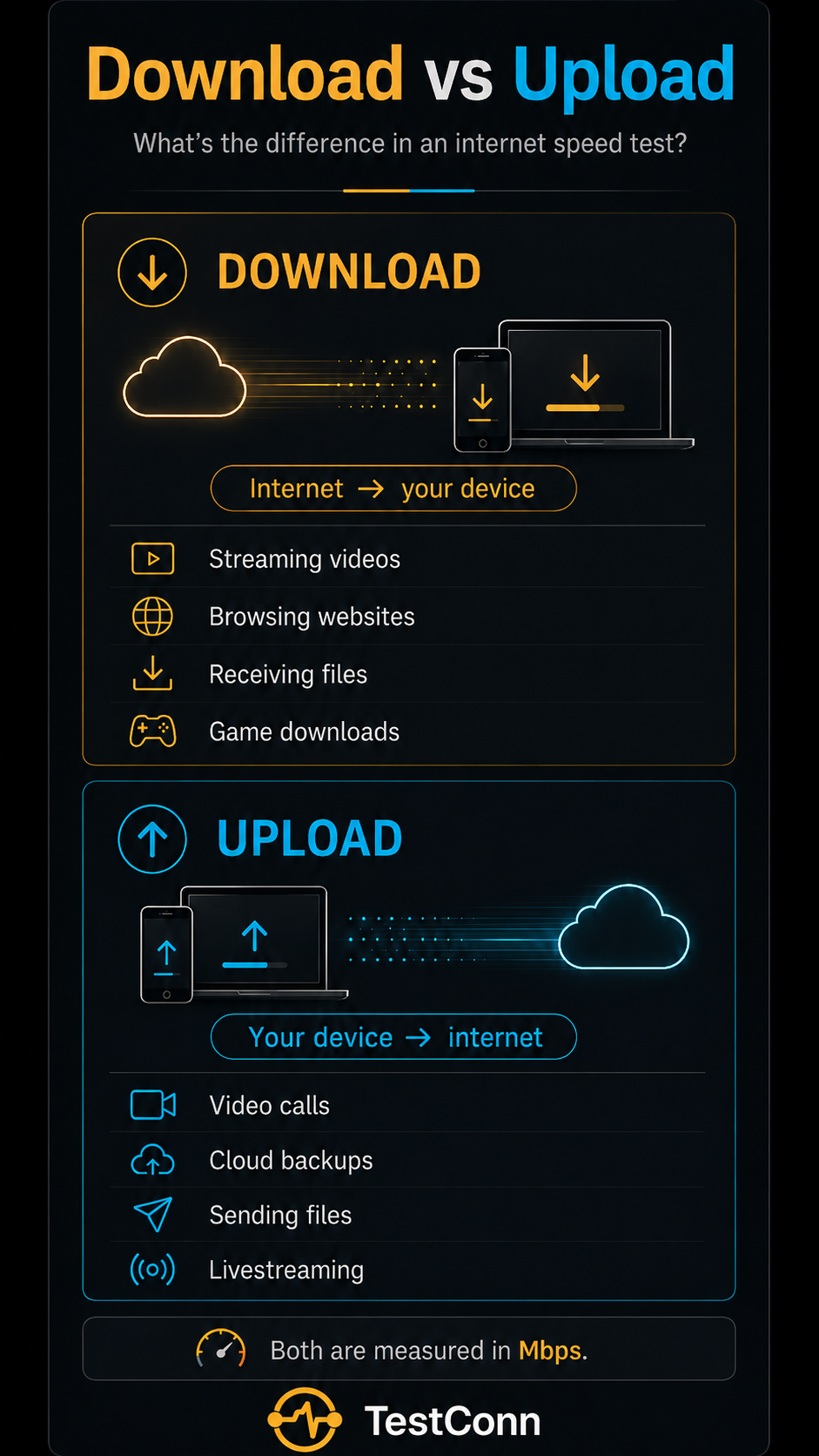
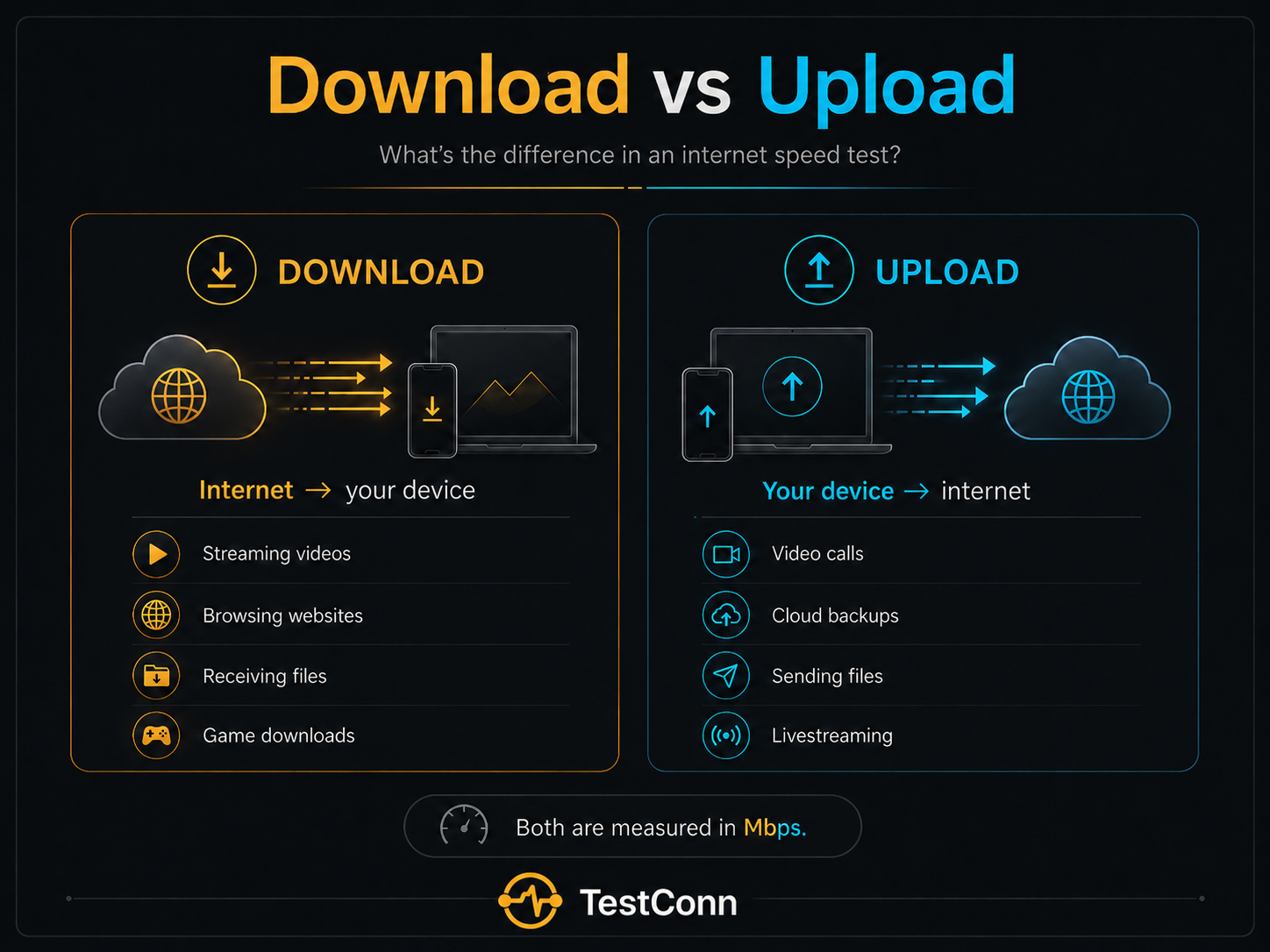
Download speed is how quickly data reaches your device; upload speed is how quickly data leaves it. Both are measured in megabits per second (Mbps).
As a rule, download matters more when you are consuming content — browsing, streaming, downloading — while upload matters more when you are sending it — video calls, backups, livestreaming. Many home internet plans are asymmetrical, meaning they provide a good deal more download than upload. That suits how most people use the internet, and it is the reason the two figures on your result usually look so different.
At a glance
Download speed
- Direction
- Data coming to your device.
- Affects
- Web browsing, video streaming, app and game downloads, software updates, receiving files.
- When it is low
- Pages load slowly, video buffers or drops to lower quality, downloads crawl, updates take a long time.
Upload speed
- Direction
- Data leaving your device.
- Affects
- Video calls, livestreaming, cloud backups, sending large files, uploading videos, your outgoing camera feed.
- When it is low
- Your outgoing video freezes or looks blocky, files take an age to send, backups drag, streams stutter for viewers.
What is download speed?
Download speed measures how quickly data travels from the internet to your device. It governs how fast pages load, how smoothly video plays, and how quickly files, apps and updates arrive. For most people it is the number that shapes the everyday experience, which is why it tends to headline a plan.
A slow-loading website does not always mean your download speed is low. That site’s own servers, how far away they are, or the route to them can all be the limit, while everything else loads quickly. Your Wi-Fi signal and the number of small requests a page makes affect what you observe, too — so a single sluggish site is weak evidence on its own.
It also helps to separate speed from time. Mbps is a rate, not a duration: a higher figure means a given file finishes sooner, but the file’s size and the sending server’s limits both affect how long it actually takes. A fast connection cannot make a slow server hand over data any quicker. For what each figure on your result means in practice, see understanding your results.
What is upload speed?
Upload speed measures how quickly data travels from your device out to the internet. It governs video calls, cloud storage, sending files, and livestreaming — anything where you are the source rather than the recipient.
When upload is the bottleneck, the classic symptom is your own outgoing video freezing or turning blocky on a call while everyone else looks fine to you — because their feeds arrive over download, which is working, while yours has to go out over a struggling upload. Cloud backups can be a common contributing factor here: they upload continuously in the background and can quietly consume most of a modest upload allocation.
Many people rarely notice upload at all until something changes — they start working from home, join a lot of video calls, or begin creating and sharing content. At that point a figure they never thought about suddenly matters a great deal.
Why is upload speed usually slower than download speed?
On most home connections, a much lower upload figure is by design rather than a fault. A few reasons combine:
- Asymmetrical plans. Residential plans deliberately allocate more capacity to download than upload.
- Network design and history. Consumer internet grew up around people consuming far more than they sent, and much infrastructure still reflects that pattern.
- Technology and plan limits. Different connection types and tiers split their capacity between the two directions in different ways.
- Shared capacity. Where capacity is shared locally, upload is often the smaller share.
Some fibre plans provide symmetrical or near-symmetrical speeds — matched download and upload — but not all do, and this varies by provider and tier. Cable, DSL and mobile connections each behave differently again, so the only reliable guide to what you have is your own plan details and a controlled test.
Symmetrical vs asymmetrical internet
Symmetrical
Download and upload are similar. This suits creators, remote workers, cloud-heavy businesses and anyone who uploads large files often, because sending is as quick as receiving.
Asymmetrical
Download is much faster than upload. This is the common residential arrangement, and it is often perfectly sufficient for browsing, streaming and everyday use.
Neither is better in the abstract. The right choice depends on the balance between what you receive and what you send — a household that mostly streams has different needs from one running daily cloud backups or livestreams.
Which activities use download, and which use upload?
Mostly download
- Browsing
- Streaming video
- Downloading games
- Receiving files
- Software updates
Mostly upload
- Cloud backup
- Sending files
- Livestreaming
- Uploading videos
- Security-camera uploads
Both directions
- Video calls
- Online gaming
- Remote desktop
- Collaborative cloud apps
- Voice calls
Online gaming is worth singling out: it appears under “both” because it exchanges data in each direction, but it uses fairly modest bandwidth overall. What decides whether a game feels good is ping, jitter and stability far more than download or upload speed — our guide to what counts as a good ping for gaming covers that in depth.
What download and upload speed do you need?
These are practical starting points, not guarantees. Real needs rise with the quality level you want, the number of people and devices sharing the connection, and what else is running at the time. Streaming and calling platforms publish their own current recommendations, and those are the figures to check for a specific service.
Basic browsing and email
- Download
- Low
- Upload
- Low
Light, bursty traffic. Almost any working connection handles it comfortably.
HD streaming (1080p)
- Download
- Moderate
- Upload
- Minimal
Steady download is what matters. A single stream is undemanding; several at once add up.
4K streaming
- Download
- High
- Upload
- Minimal
Wants sustained download and stability. Brief drops show up as buffering more than a low average would.
One-to-one video call
- Download
- Moderate
- Upload
- Moderate
Uses both directions. Your outgoing image depends on upload; theirs arrives via download.
Group video call
- Download
- Higher
- Upload
- Moderate
More incoming feeds raise the download side; your single outgoing feed still leans on upload and its steadiness.
Online gaming
- Download
- Low to moderate
- Upload
- Low
Bandwidth needs are usually modest. Once enough bandwidth is available, ping, jitter and stability often matter more than additional raw speed.
Cloud backup
- Download
- Minimal
- Upload
- High while running
An upload-heavy task that can saturate a small upload allocation and disrupt everything else.
Livestreaming
- Download
- Low
- Upload
- High and sustained
Broadcasting out is one of the most upload-demanding things you can do; steadiness is essential.
Remote work
- Download
- Moderate
- Upload
- Moderate
Calls, cloud files and remote desktops all draw on both directions, so upload is more important than for pure browsing.
Multiple users at once
- Download
- Higher
- Upload
- Higher
Everything is shared. The right figure depends on how many people do how much simultaneously.
For the homepage’s per-activity summary, see what connection quality you need.
Why is my download fast but upload slow?
This is the most common pattern of all, and usually the least worrying — but a few things beyond the plan itself can make upload worse than it should be:
- The plan is designed that way
- Most residential plans allocate far more capacity to download than upload. A big gap between the two is usually normal rather than a fault.
- Cloud backup or sync is running
- Photo backups and file-sync tools upload continuously in the background and can consume most of a modest upload allocation.
- Wi-Fi interference
- A weak or contested wireless signal affects upload too — sometimes more visibly, since your device has to transmit successfully rather than just receive.
- Provider congestion
- At busy times, contention upstream can hit upload capacity, which there is usually less of to begin with.
- Router limitations
- An older or overloaded router can hold back throughput in both directions.
- Something on the device
- Background updates, sync clients or an overloaded device can all limit what a single machine manages to upload.
- VPN use
- Routing traffic through an extra server adds distance and processing, which can lower upload as well as download.
- Another device is uploading
- A console uploading a clip or a phone backing up in another room competes for the same upload capacity.
- A service-side limit
- The destination you are uploading to may throttle or be slow to accept data, which is outside your connection's control.
If the problem is broader than upload alone, our guide to why your internet is slow works through the wider set of causes.
Why is my upload faster than download?
Less common, and not usually a sign of a fault. Possible explanations:
- Temporary congestion
- Download capacity can dip briefly under local or upstream load while upload happens to be clear at that moment.
- Normal test variation
- No two tests are identical. A single result showing higher upload than download can simply be the spread between runs.
- Server selection
- Which endpoint a test uses affects both figures. A different or nearer endpoint can shift the balance.
- Wi-Fi conditions
- Signal quality changes moment to moment, and it does not always affect both directions equally.
- Provider issues
- An intermittent fault or maintenance can temporarily depress the download side specifically.
- Background downloads
- A large download you had forgotten about consumes download capacity during the test while upload stays free.
- An unusual or symmetrical plan
- Some plans provide matched or near-matched speeds, so a roughly equal or upload-favouring result can be entirely expected.
A single reversed result is rarely meaningful on its own. Run the test a few times and compare before drawing any conclusion.
Does upload speed matter for gaming?
A little, but less than most people assume. Playing online sends small, frequent updates rather than large files, so a modest upload is normally enough. Once the connection has enough bandwidth for the game, ping, jitter, packet loss and stability often affect responsiveness more than additional raw speed.
The exception is streaming your gameplay to an audience, which layers a demanding, sustained upload on top of playing and needs far more headroom. Cloud gaming is different again: because the game runs remotely, it leans on both low latency and steady download for the video coming back. The gaming-ping guide goes into the latency side in detail.
Does upload speed affect video calls?
Yes, directly. Your outgoing camera and microphone travel over upload, while the other participants’ feeds arrive over download. That is why a weak upload shows up as your image freezing or dropping in quality for others, even though everyone looks fine on your screen.
Steadiness matters as much as the peak figure — a call needs a consistent upload, not just a high one in a test. And because upload is often the smaller allocation, other upload tasks compete for it keenly: a cloud backup running quietly in the background is a very common reason calls degrade for no obvious reason. Pausing other uploads before an important call is a simple, effective habit.
How to test download and upload speed accurately
A test taken while other things are transferring tells you little. For a reading worth acting on:
- Pause downloads, uploads and cloud sync on every device, not only the one you are testing from.
- Test near the router so wireless coverage does not skew the first reading.
- Use Ethernet where you can for the cleanest measurement of the connection itself.
- Run it more than once. A single result can be an outlier; several show the pattern.
- Compare different times to separate a constant problem from peak-hours congestion.
- Record all four figures — download, upload, ping and jitter — since which one looks wrong is the useful clue.
- Compare Wi-Fi with Ethernet to see how much your wireless setup is contributing.
Run a free internet speed test to measure both directions. Bear in mind that TestConn measures the connection to its own test endpoint, so results can reasonably differ from a particular website, service or destination — our Methodology page explains what is measured, and why results vary covers the rest.
How to improve upload speed
None of these is guaranteed to help, since the right fix depends on the cause. Work down the list and re-test after each change, so you know what actually made a difference:
Pause cloud backups
Photo and file backups can consume upload capacity without being obvious. Pausing them is a useful first check.
Stop large file uploads
Anything actively sending — a big email attachment, a video upload — competes directly with what you are doing.
Use Ethernet
A wired connection removes wireless variables and often steadies upload more noticeably than download.
Move closer to the router
Transmitting needs a good signal in both directions; distance and walls weaken it.
Try the appropriate Wi-Fi band
Closer in, 5 GHz or 6 GHz usually helps; further away or through thick walls, 2.4 GHz may hold up better. Neither is always best.
Restart the router and device
Clears accumulated state that can quietly hold performance back over time.
Update your router firmware
Manufacturers fix performance and stability issues over time; check the admin page or app.
Test another device
If only one device uploads slowly, the cause is likely on that device rather than the connection.
Turn off a VPN temporarily
Only to test. A marked improvement with it off points to the VPN as a factor.
Compare different times
If upload is only poor at peak hours, congestion is the likely explanation, and the fix differs.
Check your plan
Confirm what upload your plan actually provides before concluding something is wrong — the figure may simply be low by design.
Contact your provider with recorded results
If controlled, wired tests show upload well below the plan across different times, dated results make the case clearly.
For the wired-versus-wireless comparison specifically, see Wi-Fi versus Ethernet.
Quick comparison by symptom
To jump straight to the likely area, find your symptom here:
Streaming buffers
- Metric to check
- Download and stability
- Likely area
- Download capacity, Wi-Fi, or the streaming service itself.
- Try first
- Test download near the router, and try another title or service.
Files take a long time to upload
- Metric to check
- Upload
- Likely area
- Upload capacity, cloud sync running, or Wi-Fi signal.
- Try first
- Pause other uploads and cloud backup, then re-test over Ethernet.
Outgoing video call is poor
- Metric to check
- Upload and its steadiness
- Likely area
- Upload capacity and stability, or another upload competing.
- Try first
- Close background uploads and move closer to the router.
Downloads are slow
- Metric to check
- Download
- Likely area
- Download capacity, Wi-Fi, or the source server.
- Try first
- Test near the router and compare with a wired connection.
Cloud backup affects everything
- Metric to check
- Upload
- Likely area
- A backup saturating a small upload allocation.
- Try first
- Schedule or pause the backup, or limit its upload rate.
Gaming feels delayed despite fast speeds
- Metric to check
- Ping and jitter, not speed
- Likely area
- Latency and stability rather than bandwidth.
- Try first
- Test over Ethernet and check whether jitter is high.
One device has poor upload
- Metric to check
- Upload on that device
- Likely area
- That device's wireless adapter, background sync or settings.
- Try first
- Restart it, pause its sync, and re-test beside the router.
Upload is slow only at night
- Metric to check
- Upload, by time of day
- Likely area
- Household use or upstream congestion at peak hours.
- Try first
- Compare a quiet-hours test with an evening one.
Measure both directions
The clearest way to understand your own download and upload is to measure them together, along with ping and jitter. The test runs entirely in your browser.
Frequently asked questions
Is download speed more important than upload speed?
For most everyday use — browsing, streaming, downloading — download matters more, which is why residential plans favour it. But if you make video calls, work remotely, back up to the cloud or create content, upload becomes just as important. Which one matters more depends entirely on what you do.
Why is my upload speed much slower than download?
Usually because the plan is built that way. Residential connections typically allocate far more capacity to download, reflecting how most households use the internet. A large gap is normal rather than a fault, though a backup running or Wi-Fi problems can make upload look worse than the plan allows.
What is a good upload speed?
There is no single right number — it depends on what you send. Casual use needs very little; video calls and cloud backups need more; livestreaming and frequent large uploads need considerably more and benefit from steadiness. Check the current recommendation for the specific platform you use rather than relying on one universal figure.
What upload speed do I need for video calls?
Enough to carry your outgoing camera and microphone smoothly, with headroom to spare — and stability matters as much as the peak figure. One-to-one calls ask less than group calls. If your outgoing image freezes or degrades, upload or its steadiness is the usual cause.
Does upload speed matter for gaming?
Some, but less than people expect. Playing usually sends small amounts of data, so a modest upload is often enough. Once enough bandwidth is available, ping, jitter, packet loss and stability generally have a greater effect on responsiveness. Streaming your gameplay is different — that needs substantial, steady upload on top of playing.
Can slow upload affect download speed?
It can feel that way. Many online exchanges are two-way, so if your upload is saturated — by a backup, say — the small outgoing acknowledgements that downloads rely on can be delayed, which drags the whole experience. Freeing up upload often helps more than the raw numbers suggest.
Why is my upload speed suddenly slow?
Look for a recent change: a cloud backup or large upload that started, another device sending data, a weaker Wi-Fi connection, or congestion at a busy time. Pause background uploads and re-test before assuming a fault.
Is symmetrical internet worth it?
It depends on how much you send. For creators, remote workers, and anyone who uploads large files or livestreams regularly, matched upload is genuinely valuable. For mostly browsing and streaming, a typical asymmetric plan is usually plenty. Neither is simply better for everyone.
How can I test download and upload speed?
Pause other traffic, test near the router or over Ethernet, run it a few times and note download, upload, ping and jitter together. Comparing wired against wireless and different times of day tells you far more than a single result.
Why are my speed-test results different each time?
Because conditions change constantly — other devices, Wi-Fi signal, the time of day, the server tested against and normal variation all move the numbers. This is expected. A consistent trend across several tests is more meaningful than any single reading.
Keep reading
- Internet speed test — measure download, upload, ping and jitter in your browser.
- Why is my internet slow? — a step-by-step diagnosis when something is not right.
- What is a good ping for gaming? — when delay rather than speed is the problem.
- All guides — plain-language explanations of what your connection numbers mean.
- Methodology — how TestConn measures your connection, and what it cannot determine.
- IP and network information — what your public IP, provider and ASN reveal about your connection.